> ## Documentation Index
> Fetch the complete documentation index at: https://docs.bugbybug.com/llms.txt
> Use this file to discover all available pages before exploring further.
# Dashboard Configuration
> Set up your bug error station in 2 simple steps.
## Get started in two steps
Get your dashboard up and running to monitor your bugs.
### Step 1: Create an account
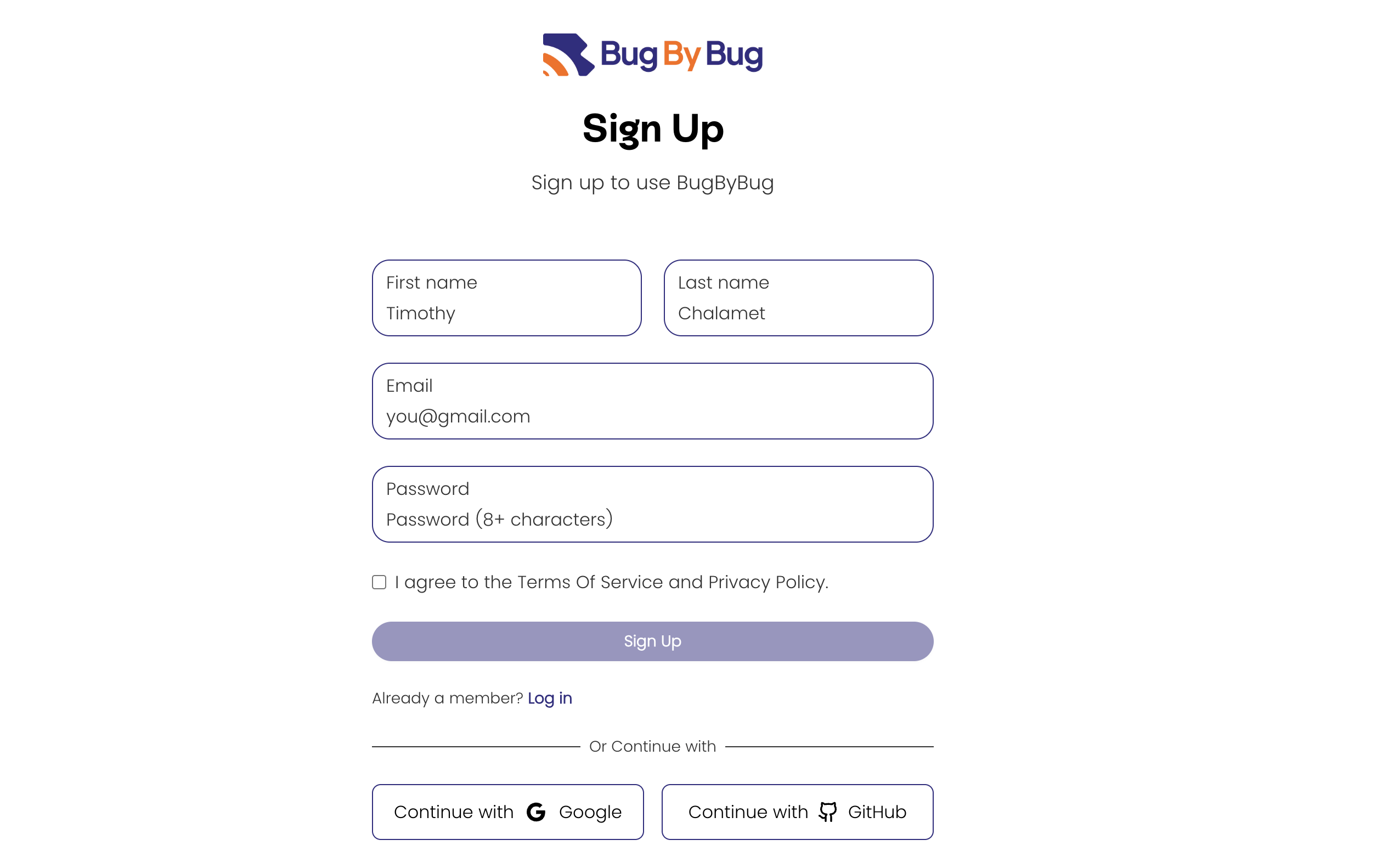
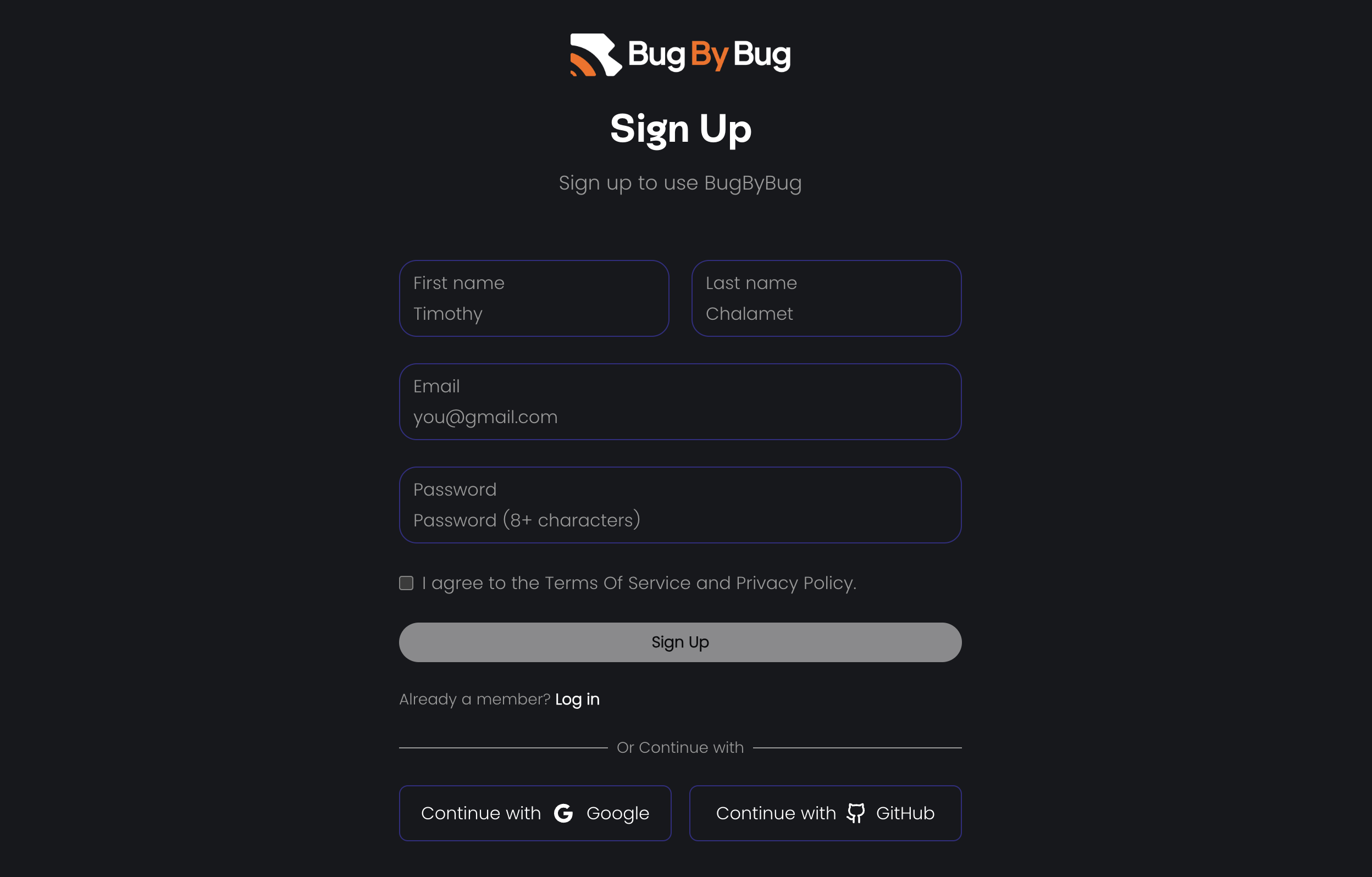
Head over to the [BugByBug dashboard](https://dashboard.bugbybug.com/signup) and create an account.
You may choose to use the traditional route (first name, last name, email, and password) or use the OAuth route (Google or GitHub login) when signing up.
Always check the box to agree to the terms and conditions when creating an account
 ### Step 2: Verify your account
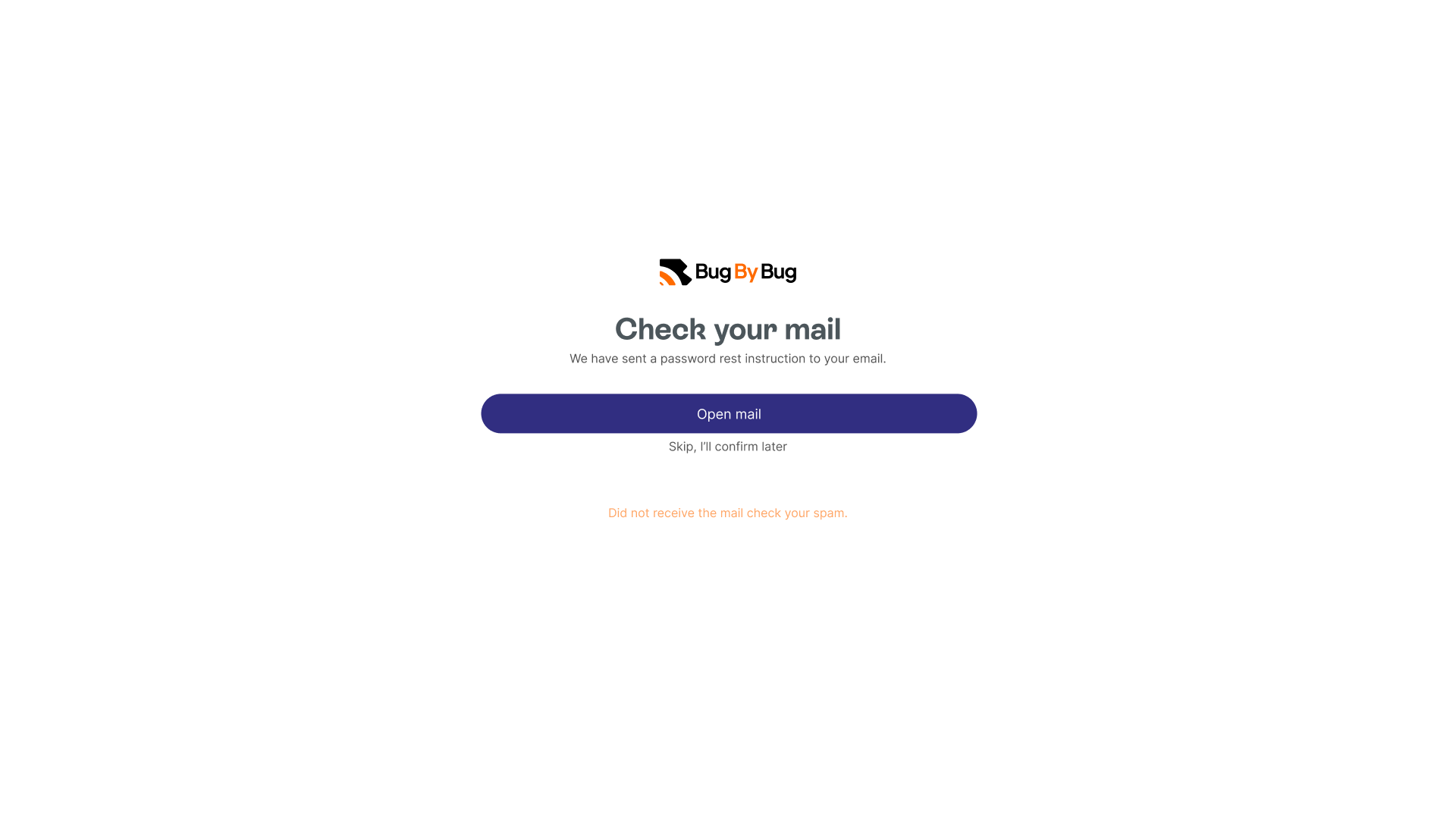
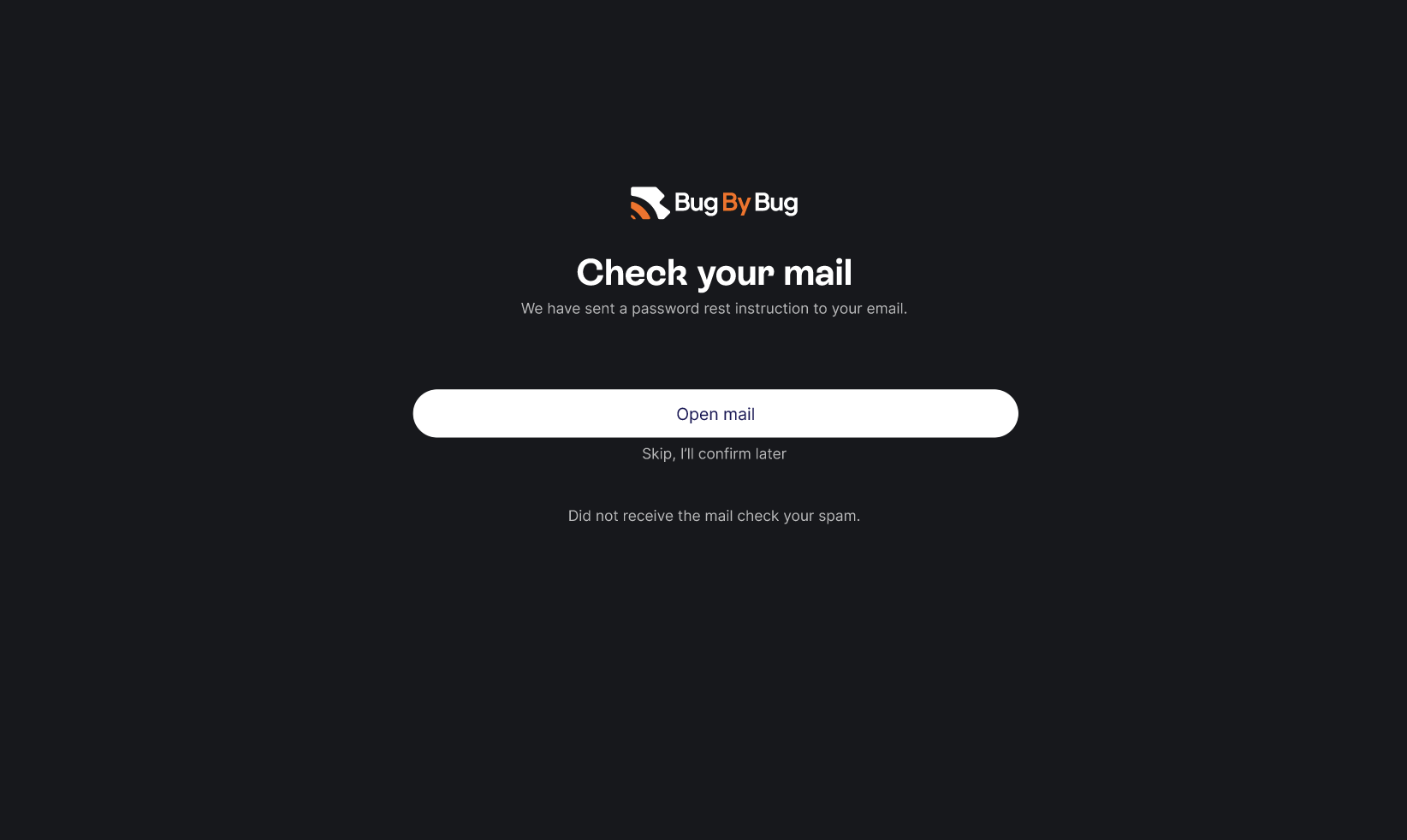
After signing up, you need to verify your email to start using the dashboard. The dashboard is where the logs of your monitored bugs, suggested errors, etc, live.
The dashboard is where you can set up your projects, view bug timelines, manage errors, and organizations.
### Step 2: Verify your account
After signing up, you need to verify your email to start using the dashboard. The dashboard is where the logs of your monitored bugs, suggested errors, etc, live.
The dashboard is where you can set up your projects, view bug timelines, manage errors, and organizations.
 And, that is how you can set up your dashboard in 2 steps! 🎉
Before you use the SDKs you would need to set up an API key.
Check out how to set this up [here](development).
## Next steps
Now that you have your dashboard up and running, explore the SDKs, which are how our software captures errors within your projects.
Learn how to set up the browser SDK.
Learn how to set up the AngularJS SDK.
Learn how to set up the NextJS SDK.
Learn how to set up the VueJS SDK.
**Need help?** Send an email to our [Support email](mailto:support@bugbybug.com).
And, that is how you can set up your dashboard in 2 steps! 🎉
Before you use the SDKs you would need to set up an API key.
Check out how to set this up [here](development).
## Next steps
Now that you have your dashboard up and running, explore the SDKs, which are how our software captures errors within your projects.
Learn how to set up the browser SDK.
Learn how to set up the AngularJS SDK.
Learn how to set up the NextJS SDK.
Learn how to set up the VueJS SDK.
**Need help?** Send an email to our [Support email](mailto:support@bugbybug.com).